No account
Install it and start capturing. There's nothing to sign up for.
 CopyShot
Get CopyShot
Capture it. It's already copied. Just paste.
Capture anything on your screen and it's instantly ready to paste. Record when a picture isn't enough. No saving, exporting, or extra steps. Add annotations whenever you need them.
How it works
 01
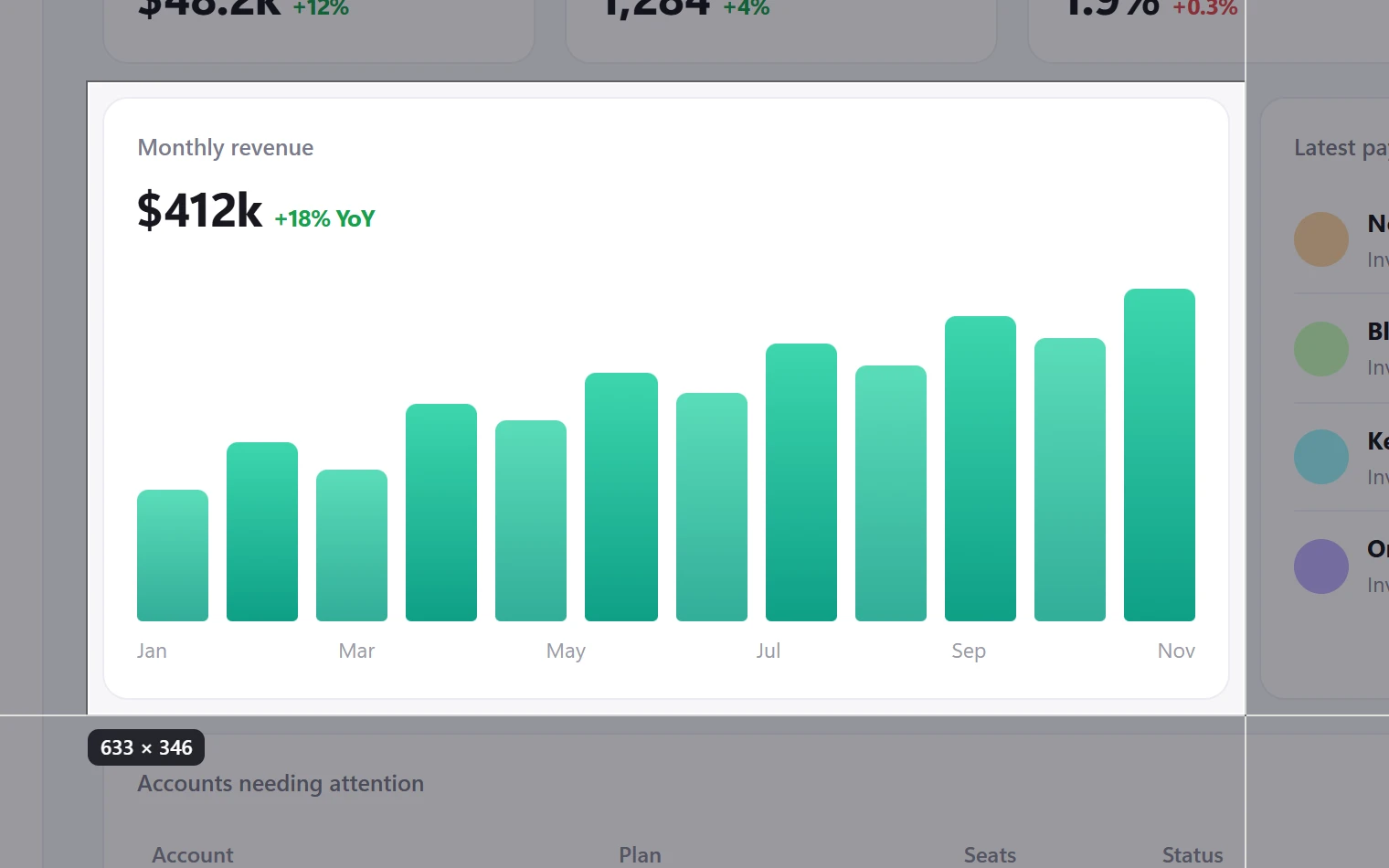
Choose what you want to capture, whether it's a visible tab, selected area, full page, or another application.
 02
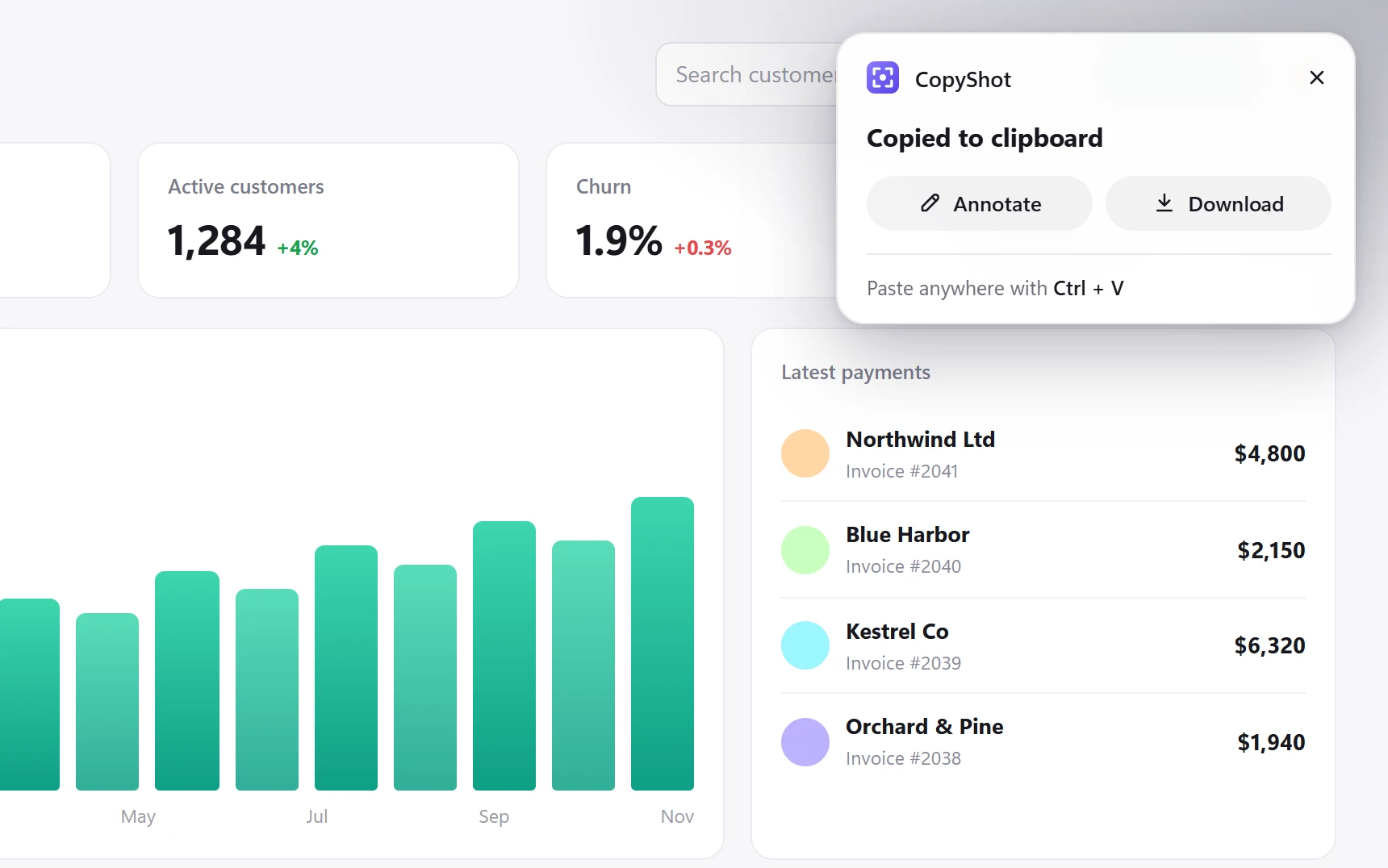
Your screenshot is automatically copied to your clipboard. No downloads or extra clicks.
 03
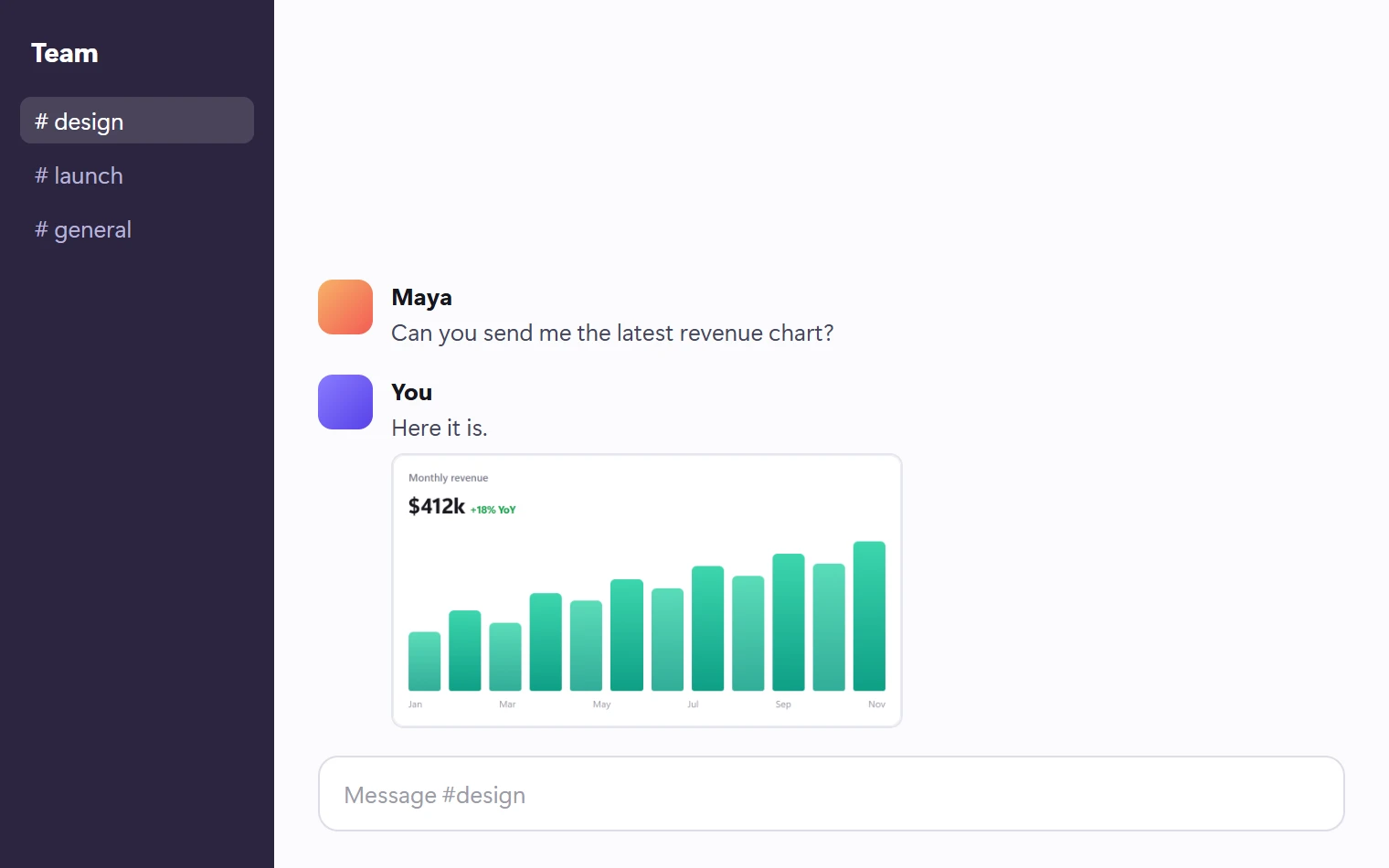
Paste it straight into an email, a chat, a document, a presentation, or wherever you need it.
Features
Each one copies to your clipboard the moment it's done. Every capture type has a keyboard shortcut.
Exactly what you see, copied in one click.
Drag over just the part you need. A crosshair helps you line it up.
Scrolls and stitches the whole page, including sticky headers and app style scroll areas.
Capture any window or screen, such as another app or your whole desktop.
When a picture isn't enough, record a tab (with its audio), a window or your whole screen. Save the video, copy a frame, or export a GIF.
Download any capture as PNG or JPEG, or have CopyShot download every capture automatically.
Optional: annotate
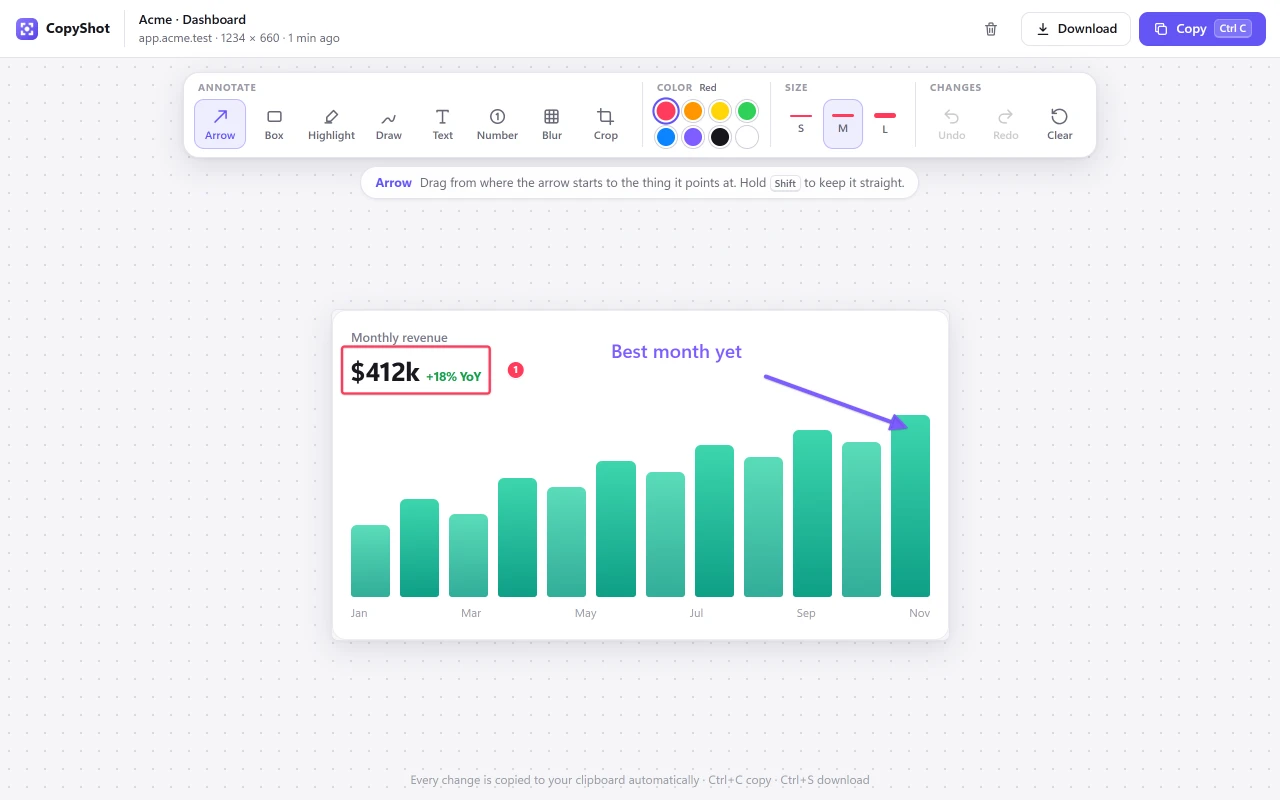
Every capture is ready to paste as it is. When you want to point something out, click Annotate on the confirmation. CopyShot updates your clipboard with each change, so whatever you paste is your latest version.
Recent captures
Turn on Save a copy to Recent to keep your latest captures in the popup. Click one to open it in the editor, or hover to copy it again. With it off, nothing piles up.

Private by design
CopyShot never uploads anything. Captures go to your clipboard and, if you choose, to your browser's storage on this computer. They leave only when you paste or download them.
Install it and start capturing. There's nothing to sign up for.
Captures stay in your browser's storage on this computer. There are no servers, no analytics and no tracking.
CopyShot only sees a tab when you click its icon, use a shortcut or pick it from the right click menu.
Yes. CopyShot is free, with no account, subscription or limits.
No. Captures are copied to your clipboard and, if you choose, kept in your browser's storage on your computer. Nothing is sent to a server.
Anywhere that accepts images: an email, a chat, a document, a presentation and more. Press Ctrl+V (⌘V on a Mac).
Yes. Open chrome://extensions/shortcuts and set the ones you like. CopyShot's settings list them too.
Chrome doesn't allow extensions to capture its own pages (such as chrome:// pages) or the Chrome Web Store. Use Screen or app to capture those.
Clipboards only accept still images, so recordings and GIFs are saved as files. You can copy any single frame of a recording as an image.
Capture it, and it's already on your clipboard. Annotate only if you want to.
Get CopyShot FreeFree · Chrome 116 or newer · No account
Chrome Web Store listing coming soon. Until then, install it from GitHub in under a minute:
chrome://extensions and turn on Developer mode (top right).packages/extension folder.